> For the complete documentation index, see [llms.txt](https://utmify.gitbook.io/central-de-ajuda/llms.txt). Markdown versions of documentation pages are available by appending `.md` to page URLs; this page is available as [Markdown](https://utmify.gitbook.io/central-de-ajuda/help-center/pixel-utmify/setting-up-the-pixel-on-my-pages/atomicat.md).
# Atomicat
After setting up the Pixel, a code will be generated, and in this tutorial you’ll learn how to configure the **Utmify Pixel** on your pages created in **Atomicat**.
### Shall we go? 🚀
***
#### Installing Pixel on Atomicat:
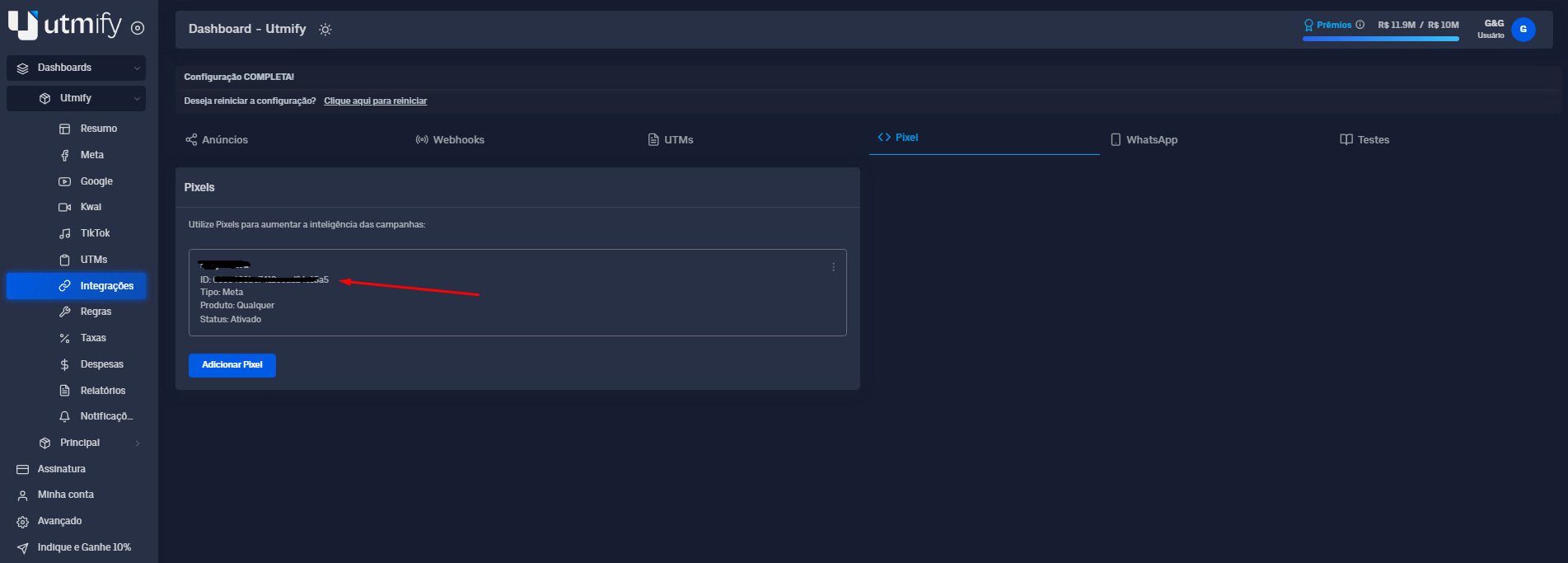
1. Go to **Utmify**, select Integrations, click on Pixel, and copy the Pixel ID generated in **Utmify**.
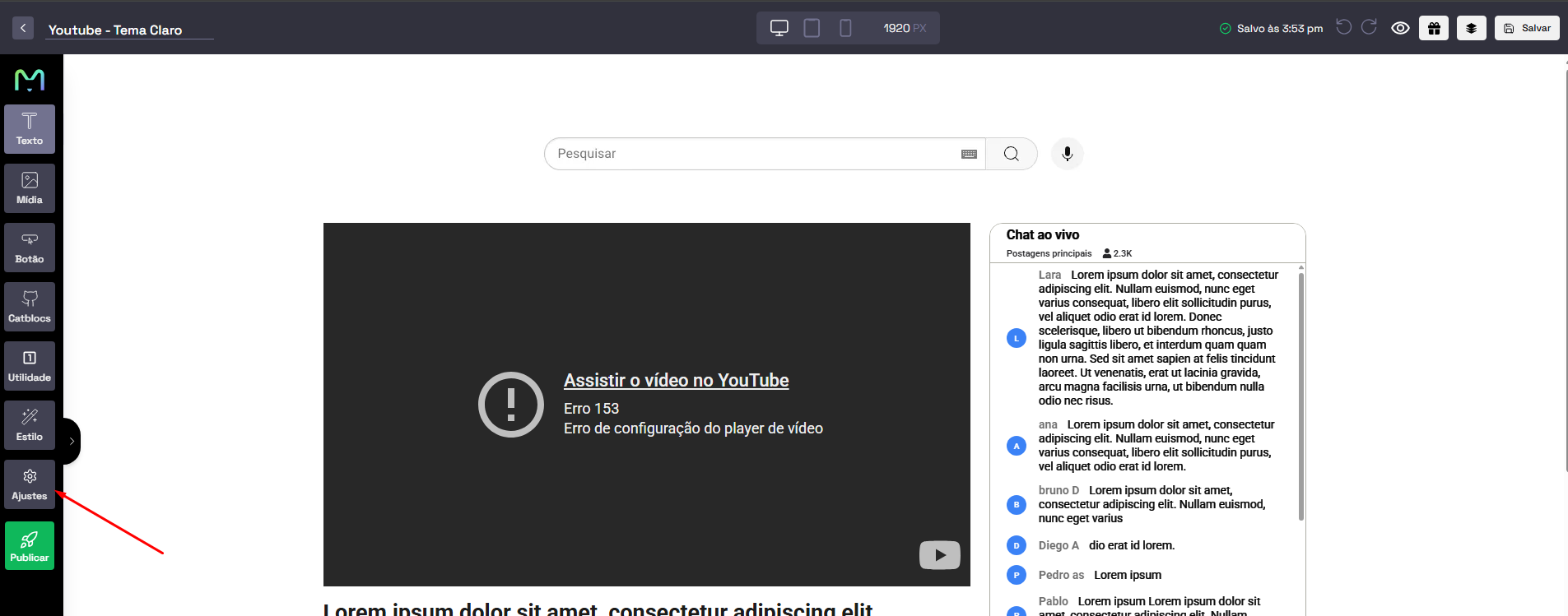
2. After copying, open **Atomicat** and go to **Settings**.
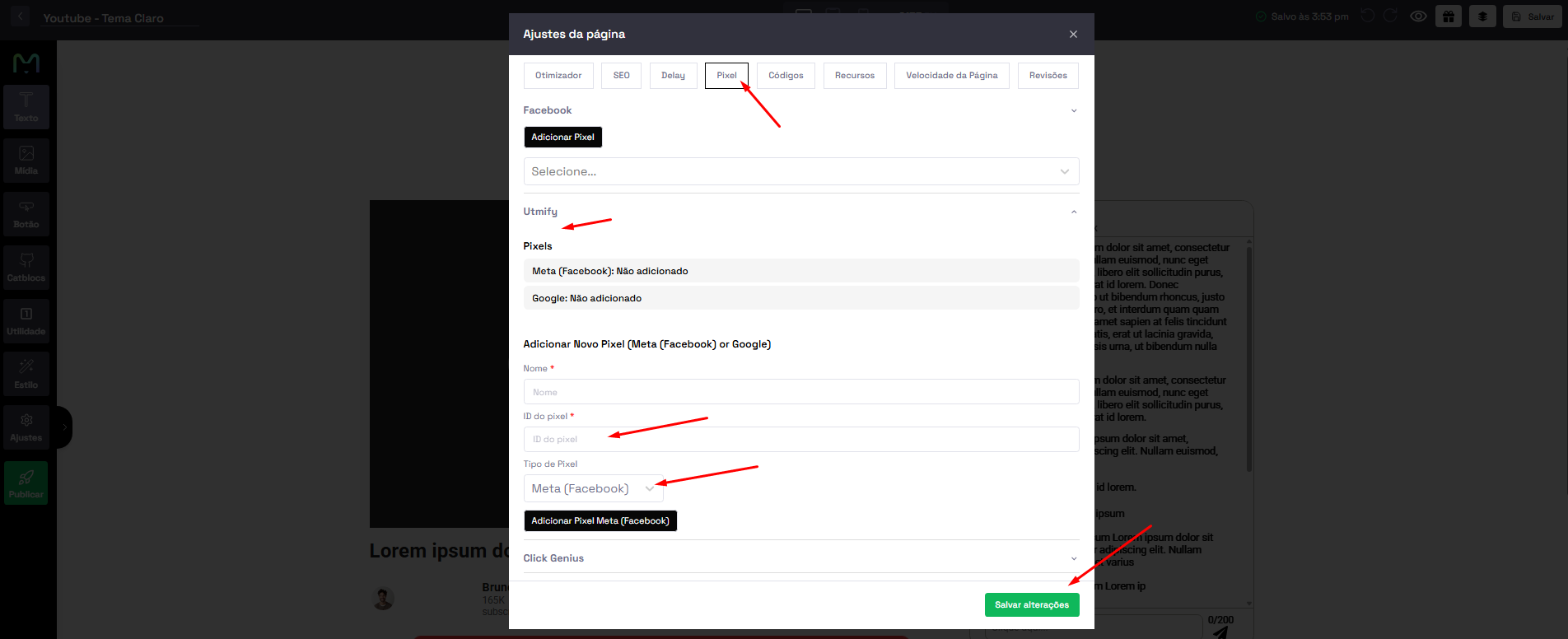
3. Go to the Pixel section, select the **Utmify** option, enter the **Pixel ID** you copied from Utmify (step 1), select the Pixel type — **Meta, Google, Kwai, or TikTok Ads** —and save your changes.
In this article, you learned how to install the **Utmify Pixel** on your pages created in **Atomicat**.